
Why Is My Android WiFi Not Working? 12 Easy Ways to Fix It
Is WiFi not working on your Android phone? Is your phone connected
to WiFi but showing no internet? These 12 simple troubleshooting
methods can help you find and fix common WiFi problems.
⚡ Quick Answer
Start by turning WiFi off and on, restarting your Android phone,
restarting the router, forgetting and reconnecting to the network,
and checking whether other devices can access the internet.
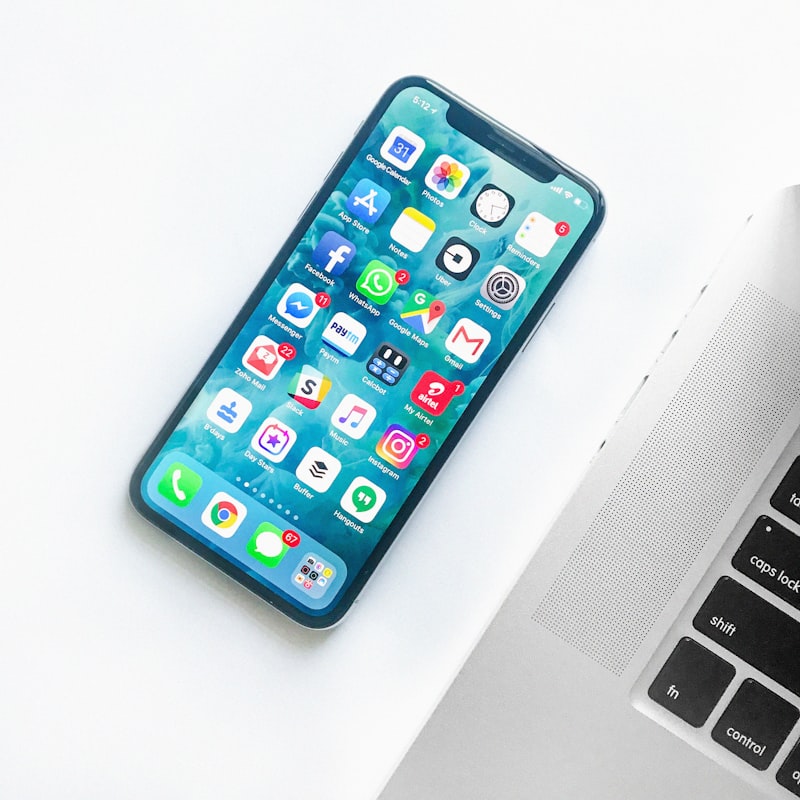
Check your Android WiFi connection before trying advanced fixes.
1
Turn WiFi Off and On
The easiest thing to try is refreshing your phone’s WiFi connection.
Turn WiFi off, wait a few seconds, and turn it back on.
This can clear a temporary connection problem without changing any
other settings.
2
Restart Your Android Phone
A temporary software or network issue can sometimes affect WiFi.
Restarting your phone is a quick and simple troubleshooting step.
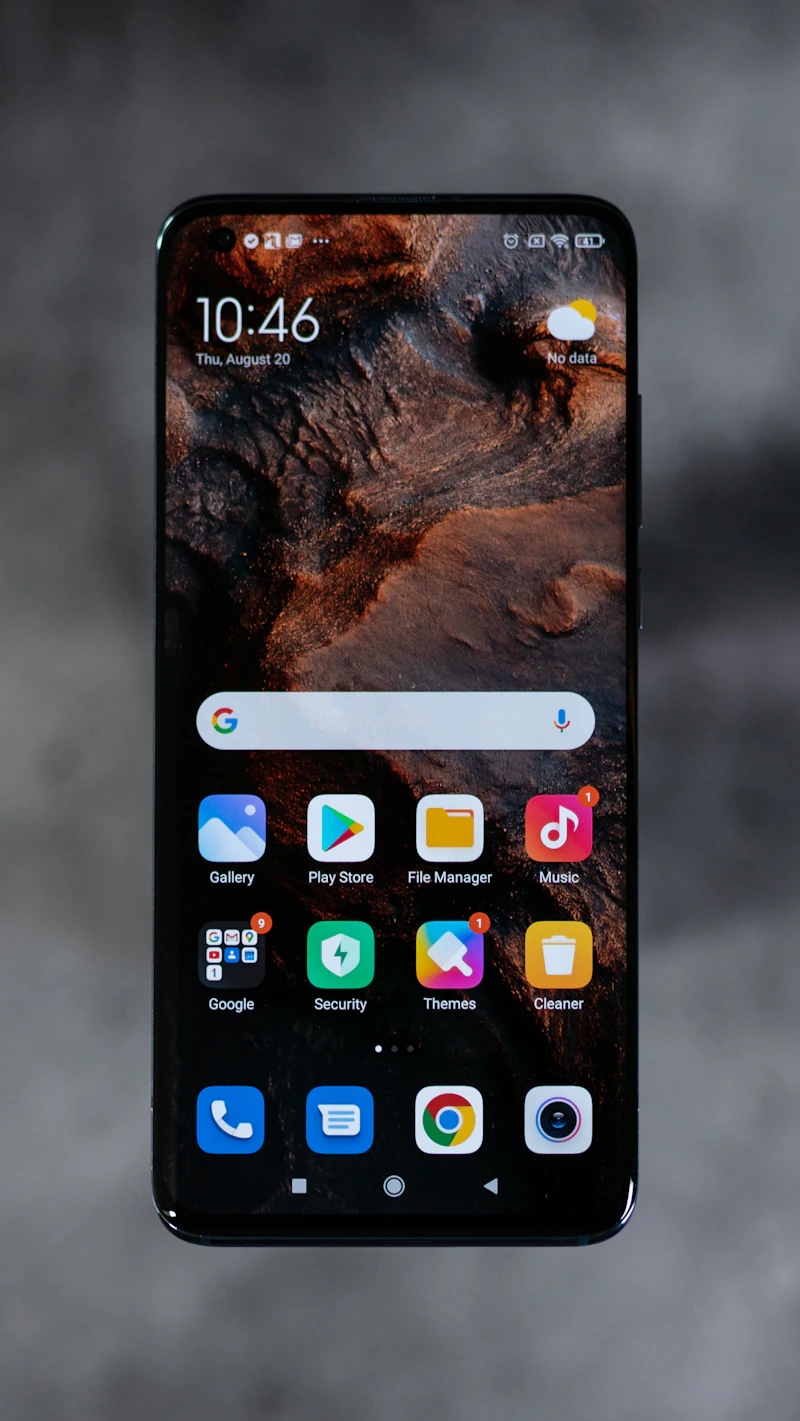
Restarting the phone can resolve temporary wireless connection issues.
3
Restart Your WiFi Router
If other devices connected to the same WiFi network also have no
internet, the problem may be related to the router or internet
connection.
Try these steps:
- Turn off the router.
- Wait a short time.
- Turn the router back on.
- Wait for the connection to become available.
- Connect your Android phone again.

Restart your WiFi router if multiple devices cannot access the internet.
4
Forget the WiFi Network and Reconnect
If the saved WiFi information is causing a problem, forget the network
and connect to it again.
After forgetting the network, select it again and enter the current
password.
5
Check the WiFi Password
If the WiFi password was recently changed, your phone may still have
the old password saved.

A stable wireless network is important for a reliable Android connection.
6
Move Closer to the Router
WiFi signal strength can become weaker when you are far from the router
or when walls and other obstacles interfere with the signal.
7
Check Whether Other Devices Have Internet
Connect another phone, tablet, or computer to the same WiFi network.
This helps determine whether the issue is limited to your Android phone.
or contact your internet provider.

Test another device to find out whether the problem affects the whole network.
8
Turn Airplane Mode On and Off
Airplane Mode can refresh your phone’s wireless connections. Turn it
on briefly and then turn it off before trying WiFi again.
9
Check Date and Time Settings
Incorrect date or time settings can sometimes cause problems with
secure connections and online services.
Try automatic date and time:
Settings → System → Date & time → Set automatically
Android network settings can vary depending on your device.
10
Reset Network Settings
If the normal troubleshooting steps do not work, you can consider
resetting your phone’s network settings.
networks, Bluetooth connections, and other network-related settings.
11
Check for Android Software Updates
If your phone has a pending system update, installing it may address
software bugs or compatibility problems.

Keeping Android software updated can help with compatibility issues.
12
Test Another WiFi Network
If possible, connect your Android phone to another WiFi network.
This is a useful way to determine whether the issue is related to
your phone or the original network.
router or network may need further troubleshooting.

Testing another network can help identify where the WiFi problem is.
✅ Android WiFi Quick Fix Checklist
- Turn WiFi off and on
- Restart your Android phone
- Restart the WiFi router
- Forget and reconnect to the network
- Check the WiFi password
- Move closer to the router
- Check other devices
- Toggle Airplane Mode
- Check date and time
- Reset network settings if necessary
- Check for Android updates
- Test another WiFi network
❓ Frequently Asked Questions
📶 Final Thoughts
When Android WiFi is not working, start with the simplest solutions:
refresh the WiFi connection, restart the phone and router, and
reconnect to the network.
If the problem continues, test another device or another WiFi network
to determine whether the issue is with your Android phone or the network.