
Android Storage Full? 12 Easy Ways to Free Up Space
Seeing an “Storage space running out” warning on your Android phone?
These simple methods can help you find unnecessary files and free up
storage without deleting important data.
⚡ Quick Answer
First check which category is using the most storage. Then review
large videos, photos, downloads, unused apps, duplicate files,
messaging media, and temporary files.

Checking your phone regularly can help prevent storage problems.
1
Check What Is Using Your Storage
Before deleting anything, find out exactly what is consuming your
phone’s storage. Android normally provides a storage overview inside
Settings.
Depending on your phone, you may see categories such as apps, images,
videos, audio, documents, downloads, and system files.
Xiaomi, Redmi, OnePlus, Motorola, Google Pixel, and other Android phones.
2
Delete Large Videos You Don’t Need
Videos can take up a surprising amount of storage, especially long
recordings and high-resolution videos.
- Old screen recordings
- Unwanted camera videos
- Downloaded videos
- Duplicate clips
- Large social-media videos
3
Remove Unwanted Photos and Screenshots
Screenshots, duplicate images, blurry photos, memes, and old images
can gradually consume a lot of space.
It is often filled with images that were only needed temporarily.
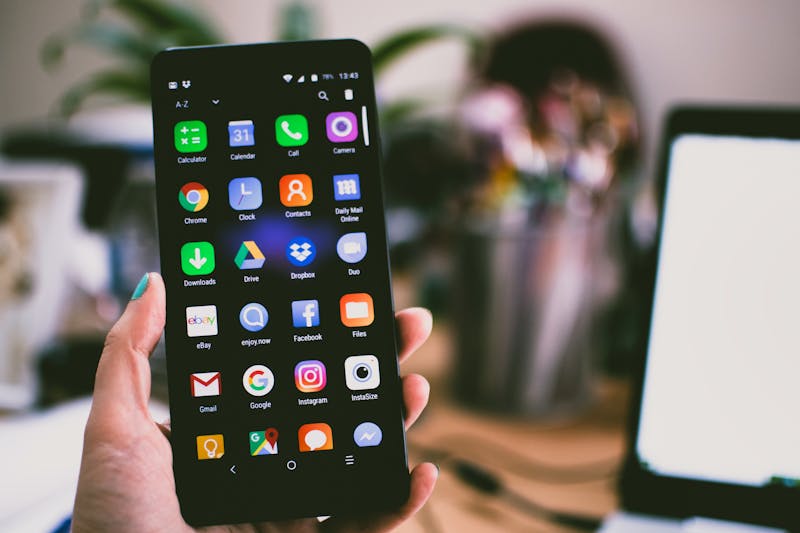
Review your gallery and remove images you no longer need.
4
Clean Your Downloads Folder
Downloaded files are easy to forget. Open your file manager and check
the Downloads folder.
Remove old PDFs, ZIP files, documents, installers, images, and other
files that you have already finished using.
5
Uninstall Apps You No Longer Use
Unused applications and games can occupy hundreds of megabytes or
several gigabytes.
up space quickly.
6
Clear App Cache Carefully
Some applications store temporary cached files. Clearing cache may
recover some storage, especially when a particular app has accumulated
a large amount of temporary data.
different options. Clearing storage can remove app data and may sign
you out of an application.
Removing unused apps can recover valuable storage space.
7
Check WhatsApp and Messaging Media
Messaging apps can store many photos, videos, documents, GIFs, voice
messages, and other media files.
Look for large files such as:
- Large videos
- Repeated photos
- Old documents
- Files from inactive chats
8
Remove Offline Downloads
Streaming and other apps may save content for offline use. Check
applications for downloaded music, videos, podcasts, maps, and other
offline files.
or no longer need.
9
Find Large Files
Many Android file managers can help you locate large files. If your
phone provides a “Large files” or similar option, use it to identify
files consuming the most space.

Finding large files makes it easier to decide what can be removed.
10
Empty the Trash or Recently Deleted Folder
Deleted photos and files may remain in a Trash or Recently Deleted
folder for some time instead of being permanently removed.
still need.
11
Move Important Photos and Videos
If your phone regularly runs out of space, move important files to
another storage location such as a computer, external storage, or a
cloud service you already use.
deleting the originals.
12
Restart and Check Your Storage Again
After cleaning your phone, restart it and return to the Storage section.
Check how much free space is available now.
“Storage full” warnings.
A regular storage cleanup can help keep your Android phone organized.
✅ Quick Storage Cleanup Checklist
- Check Android Storage settings
- Delete unwanted videos
- Remove duplicate and unnecessary photos
- Clean the Downloads folder
- Uninstall unused apps and games
- Clear app cache when appropriate
- Review messaging-app media
- Remove old offline downloads
- Find and review large files
- Empty Trash after checking its contents
- Back up important files
- Check your available storage again
❓ Frequently Asked Questions
💾 Final Thoughts
When Android storage is full, you usually do not need to delete
everything. First identify what is taking up the most space, then
remove files and apps you no longer need.
Regularly cleaning downloads, videos, screenshots, unused apps,
messaging media, and large files can help keep your phone’s storage
under control.